TABLE OF CONTENTS
To learn more about the features included in our Microsoft Teams integration, read the MS Teams Integration article.
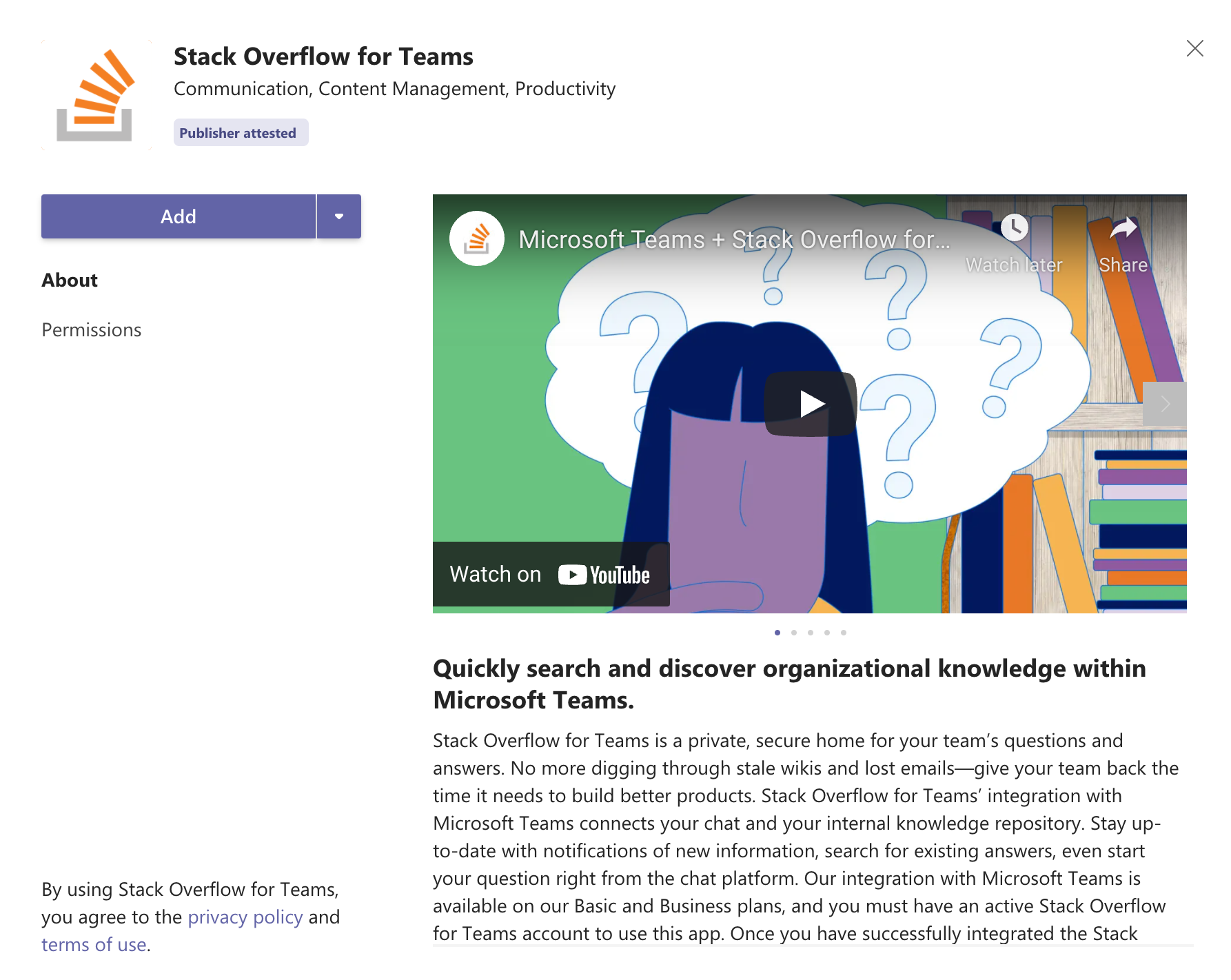
From the Stack Overflow Internal app in the MS Teams directory, click the Add button.
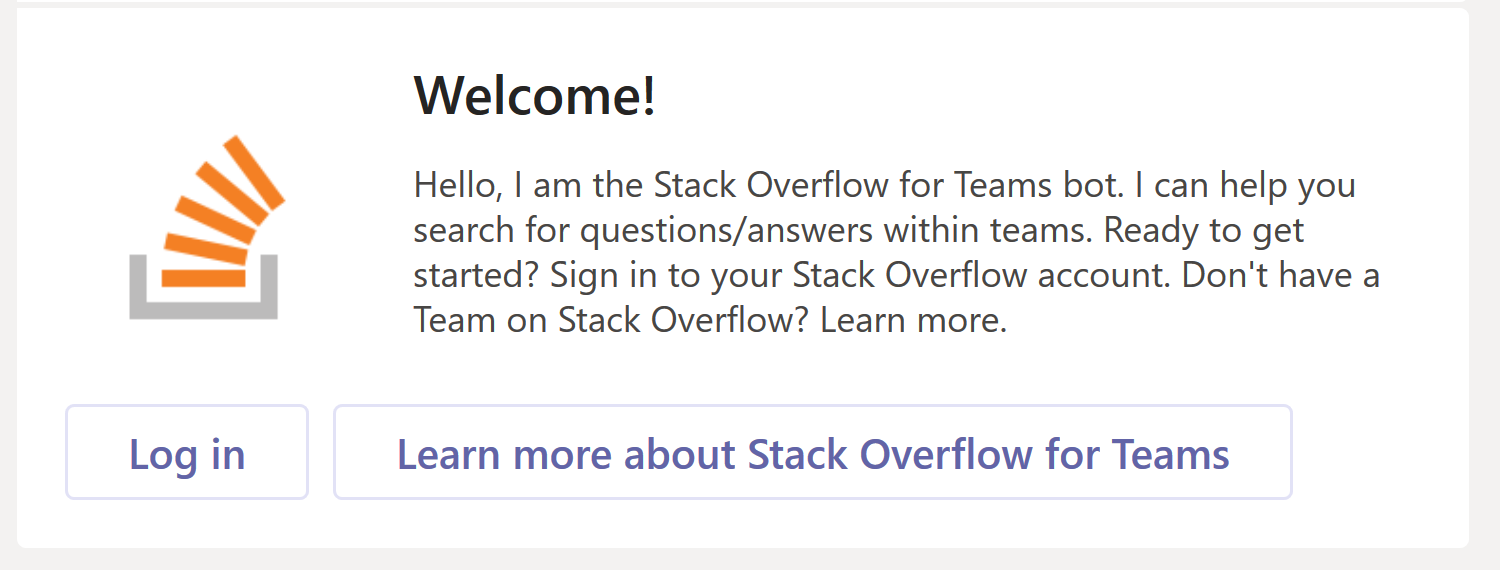
You will then be prompted with a card to Log In to your Stack Internal Community Team.
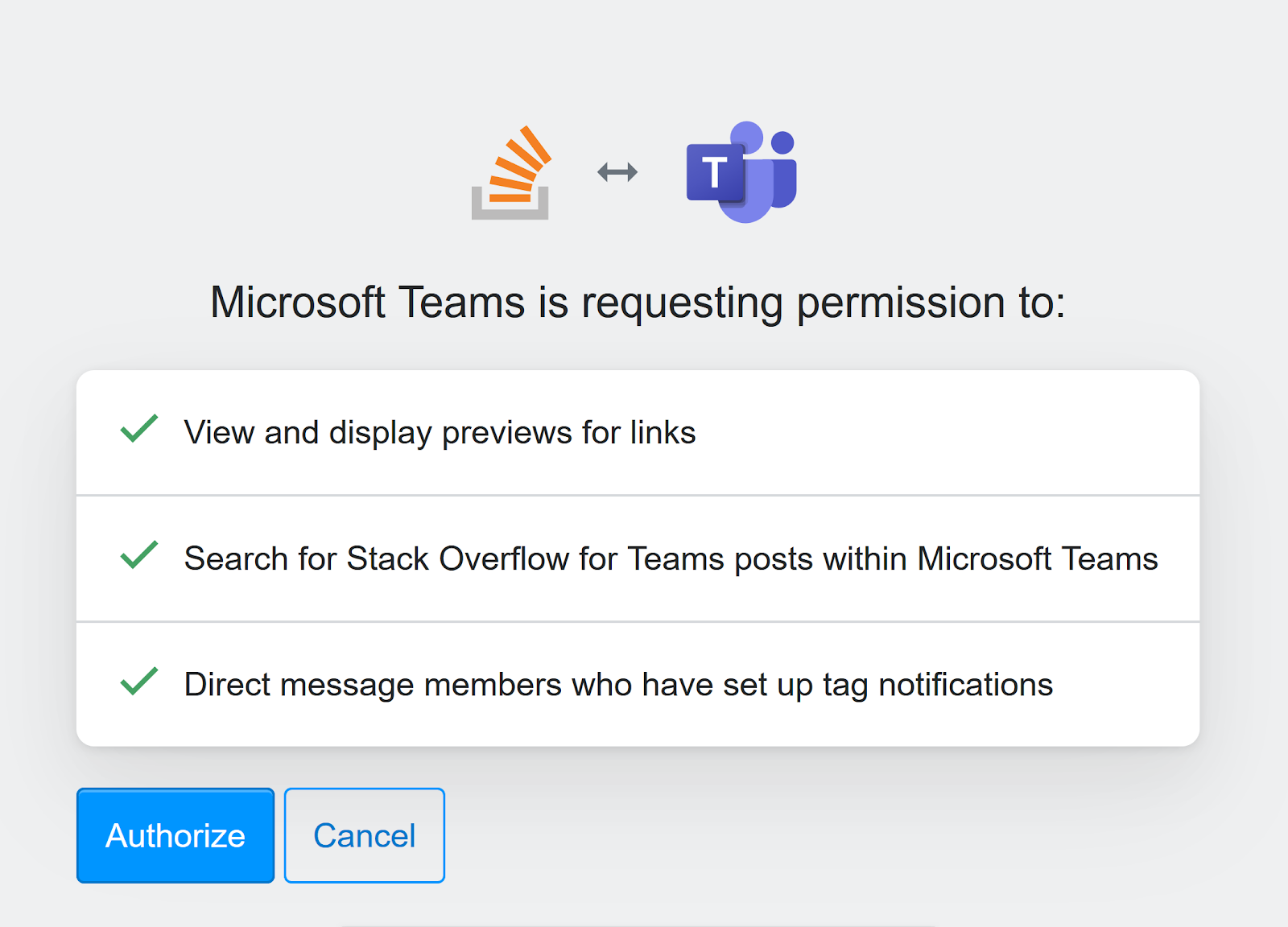
Once you Log in, authorize the integration between MS Teams and Stack Internal Community.
If your Stack Internal Community Team uses Single Sign-on (SSO) for authentication, the first installation of the MS Teams integration has to be done in a browser, by an admin.
On the following screen, add the Team that you want to be connected to your Microsoft Team.
You can only have one Stack Internal Community Team connected to one Microsoft Team.
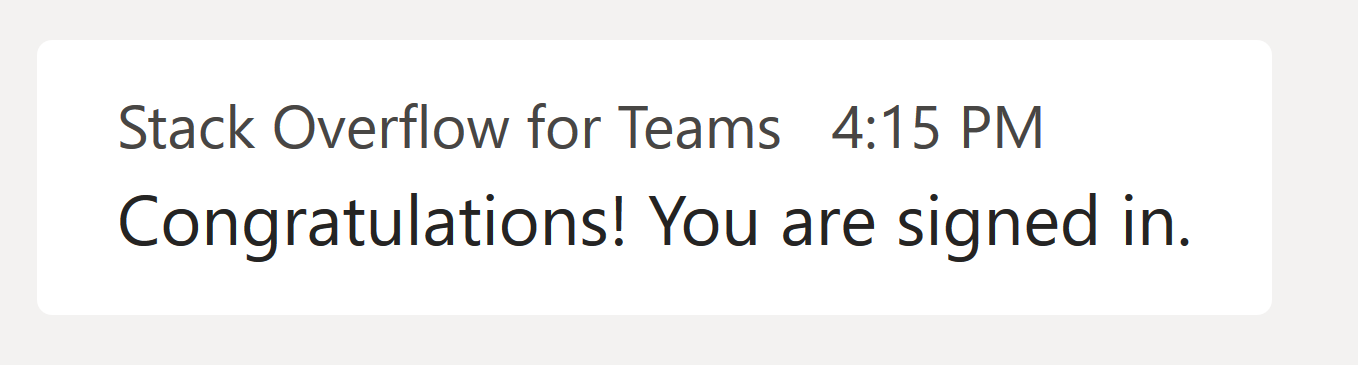
Once you do so, the Stack Internal Community tab in MS Teams will confirm that you’re signed in, and ready to use the integration.
Uninstall the integration
To remove the Microsoft Teams integration, uninstall the Stack Internal Community app directly from Microsoft Teams.
- Open Microsoft Teams and locate the Stack Internal Community app in the left sidebar, or click ..., then More apps to find it.
- Right-click the app and select Uninstall.
After you uninstall the app, the Stack Internal Community app will no longer be available in Microsoft Teams for your organisation.
If the integration still appears after uninstalling, contact Stack Overflow Product Support. Product Support can disable the integration from the backend, after which you can reinstall and reconfigure as needed.
To reactivate the integration, reinstall and reconnect the Stack Internal Community app.