TABLE OF CONTENTS
ADMIN PRIVILEGES REQUIRED
Overview
The Stack Internal Community Enhanced Search feature uses AI to summarize search results in your site. In addition to quickly finding the content they need, users can save the summary and turn it into a new question and answer on your Stack Internal Community site. This captures the AI-generated content to benefit other users.
To configure search settings, click Admin settings in the left-hand menu. Click Search under the "CONTENT" heading. The Search settings page will appear.
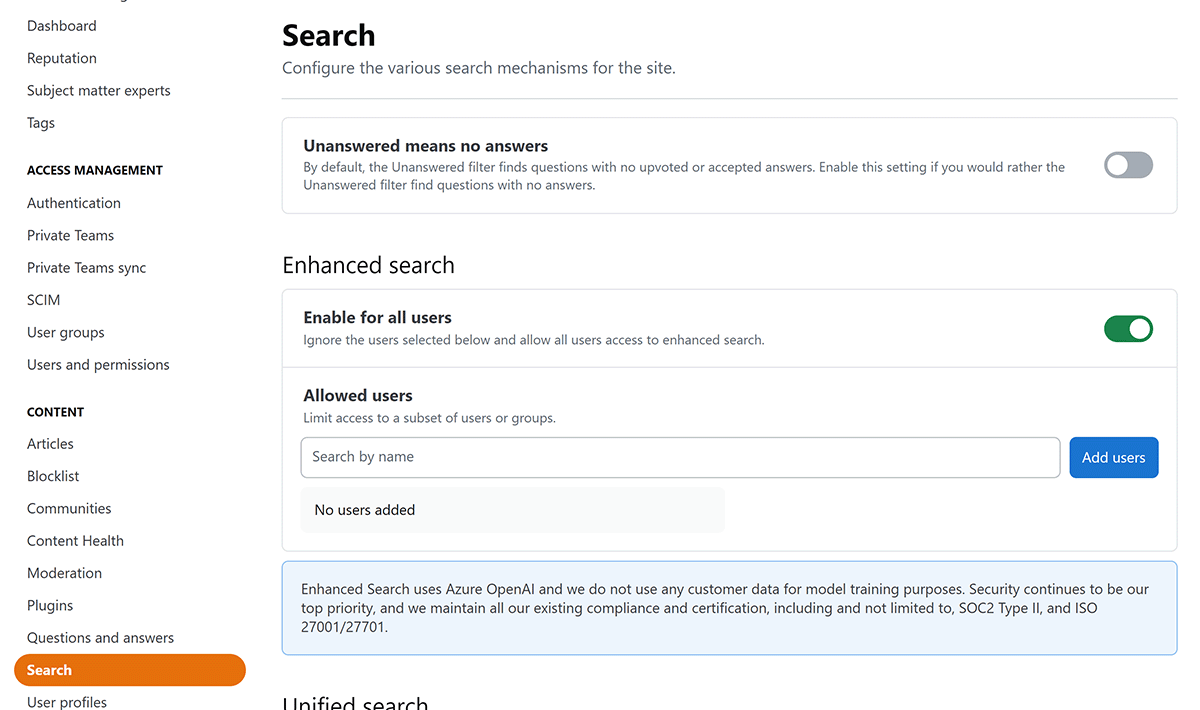
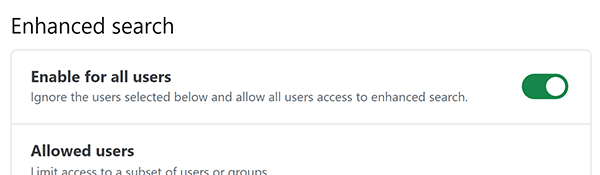
To turn on Enhanced Search for all users, enable the Enable for all users toggle. To turn off Enhanced Search entirely, or to restrict access to only specified users, disable the toggle.
Grant access to specific users
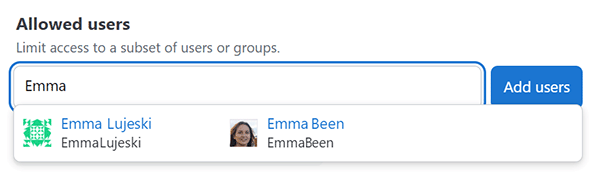
To allow only selected users access to Enhanced Search, disable the Enable for all users toggle. Begin typing a name into the Allowed users box. When you see the correct name in the search results, click on it to select it. You can add as many individual users as you like.
Grant access to user groups
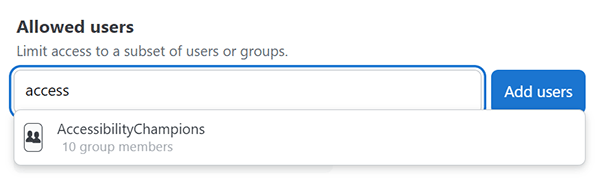
You can also use the Allowed users box to locate user groups. Enter the name of a user group. When you see the group name in the search results, click on it to select it. You can add user groups and individual users in any combination and quantity.
Remove access to users or groups
To remove users or groups from the access list, click X next to the user or group name.