TABLE OF CONTENTS
ADMIN PRIVILEGES REQUIRED
Overview
Stack Internal Community integrates with Duo Security for SAML 2.0 authentication. You can learn more about SAML in our SAML 2.0 Overview document.
To configure Duo Security authentication, you'll first need to have configured a SAML Identity Provider to provide primary authentication for Duo Single Sign-On. Learn more about configuring the SAML Identity Provider with Duo Single Sign-On.
When setting up SAML authentication, you'll configure your Stack Internal Community site and Duo Security in a back-and-forth process. We recommend having a browser tab or window open to each site.
Protect an application in Duo Security
-
Sign in to your Duo Security administration panel.
-
On the left-hand side of the screen, click Applications then Protect an Application.
-
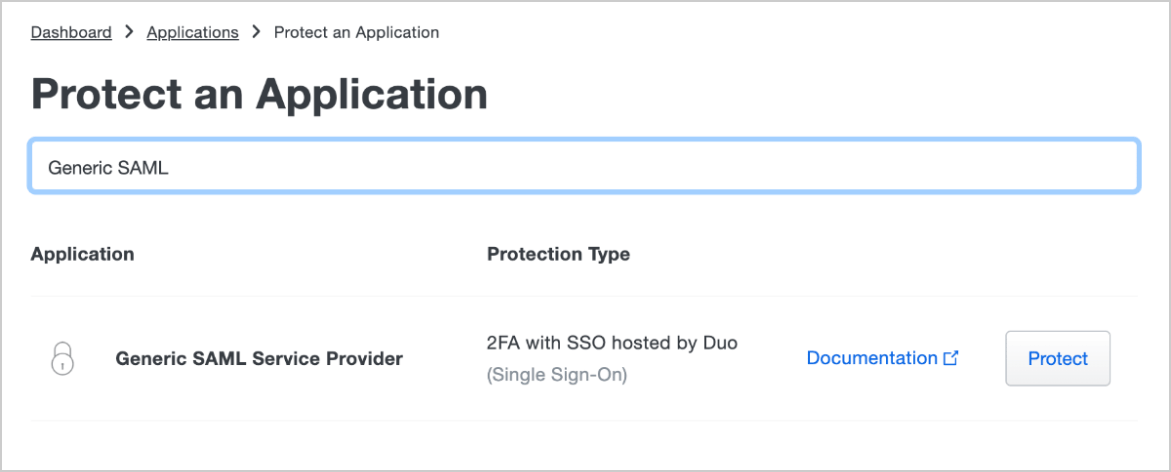
Enter "generic SAML" in the search bar. Locate the "Generic SAML Service Provider" option and click Protect.
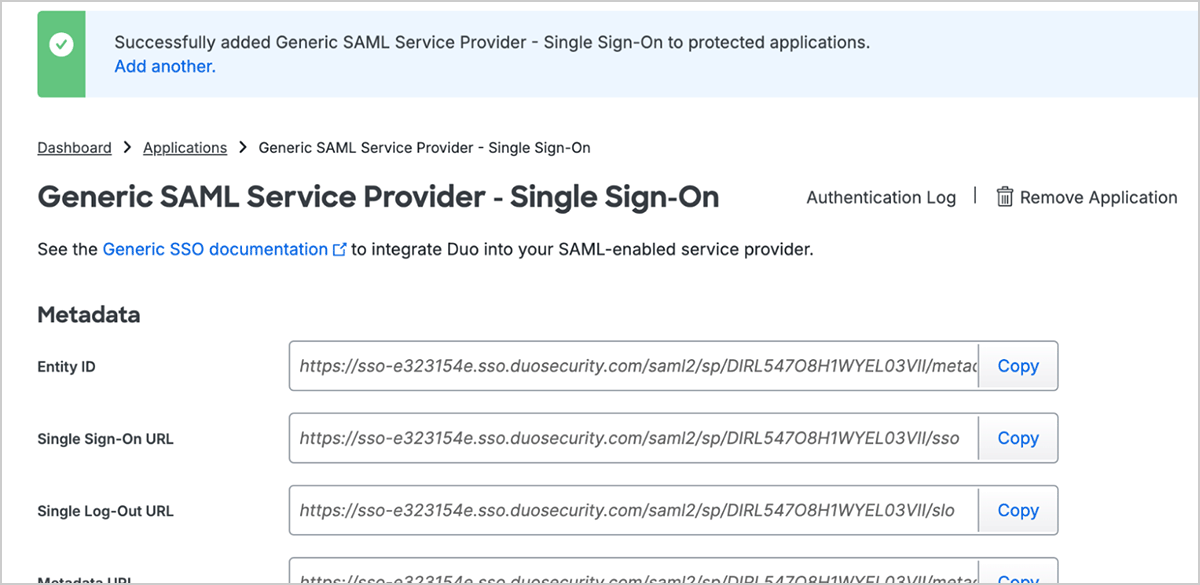
The main SAML configuration screen will appear. It includes the Entity ID and Single Sign-On URL fields you'll enter later into Stack Internal Community.
Configure settings in Stack Internal Community
In a separate browser tab or window, log into Stack Internal Community as an admin. Click Admin settings in the left-hand menu, then Authentication. Click Use SAML 2.0 (if not already enabled).
SAML 2.0 settings
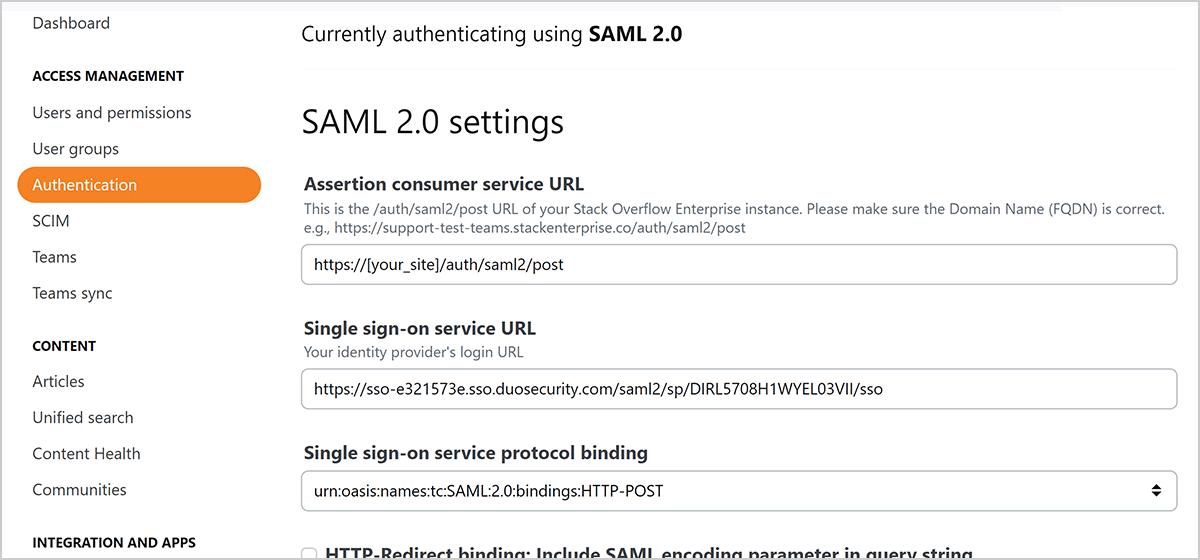
On the SAML 2.0 settings page, enter the following information.
- Assertion consumer service URL Enter the SAML 2.0 post URL of your Stack Internal Community site (https://[your_site].stackenterprise.co/auth/saml2/post).
- Single sign-on service URL Copy the Single Sign-On URL value from Duo Security and paste it here.
- Issuer Copy the Entity ID value from Duo Security and paste it here.
- Audience restriction Enter any value (we suggest StackOverflowEnterprise). You'll enter this into Duo Security in a later step.
- Use Subject/NameID as user identifier Leave this option checked.
Configure settings in Duo Security
Service provider
Next, you'll configure settings in the Service Provider section in Duo Security.
- Metadata Discovery Leave set to None.
- Entity ID Copy the Stack Internal Community Audience Restriction value you created earlier (for example: StackOverflowEnterprise) and paste it here.
- Assertion Consumer Service (ACS) URL Enter the SAML 2.0 post URL of your Stack Internal Community site (https://[your_site].stackenterprise.co/auth/saml2/post).
Leave the remaining fields from this section blank.
SAML response
In the SAML Response section of the page, set the following values.
-
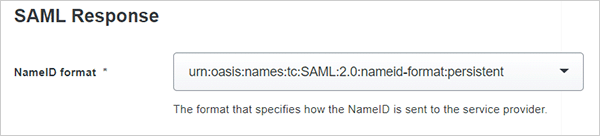
NameID format Set this to the option that ends in :persistent (for example: urn:oasis:names:tc:SAML:2.0:nameid-format:persistent).
-
NameID attribute Enter a user identifier that will never change (for example: login or user ID).
-
Signature algorithm Select SHA256.
-
Signing options Select Sign response and Sign assertion.
-
Assertion encryption Leave this unselected.
It's important to select a NameID attribute that is both unique and unchanging. A user's email address, for example, is unique but not unchanging (an updated email address would result in Stack Internal Community creating a new, duplicated account for that user).
SAML attributes
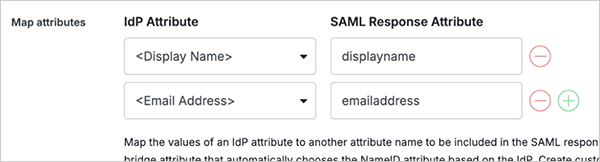
In SAML 2.0, attributes (also called "assertions") are the fields that carry user information. Stack Internal Community requires one attribute for the user's email address and another for display name.
-
Use the green (+) button to add <Display Name> and <Email Address> attributes in the IdP Attribute column.
-
In the corresponding SAML Response Attribute fields, enter displayname and email.
You can also add the following optional SAML attributes:
- Job title (as
jobtitle) - Department (as
department)
When Duo Security includes
jobtitleanddepartmentin the SAML response, Stack Internal Community automatically updates these user data fields on login. Including these attributes also allows you to use Stack Internal Community's Connectivity reporting feature. - Job title (as
-
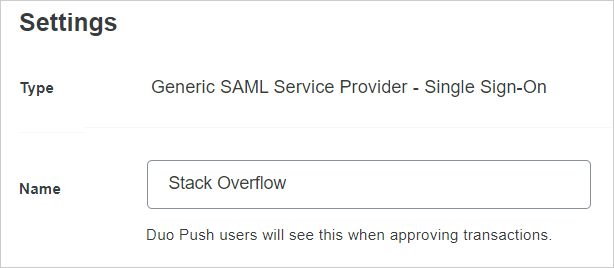
To make the login process clearer to your users, assign a name to the application (for example: Stack Internal Community). Users with Duo Push two-factor authentication will see the application name.
-
Click Save at the bottom of the page to complete the Duo Security configuration.
Finalize Stack Internal Community setup
SAML attributes
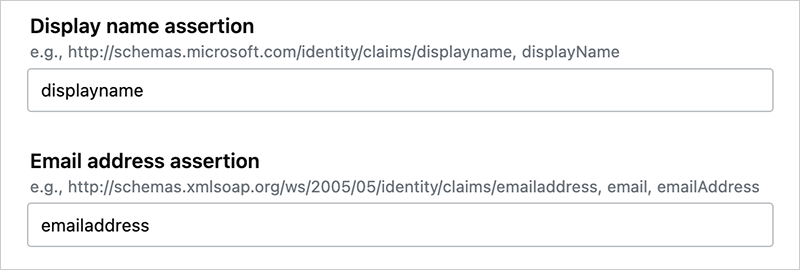
In Stack Internal Community, copy and paste the SAML response attributes from Duo into the corresponding Display name assertion and Email address assertion fields. If you added the optional job title and department assertions, enter those here as well.
Certificate
-
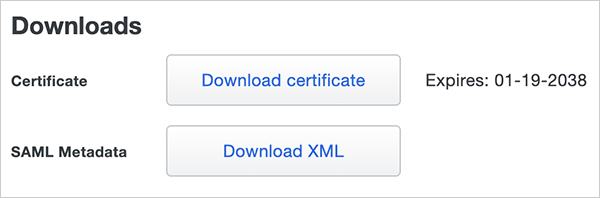
From the Downloads section in Duo Security, click Download certificate. Your browser will download a .crt file.
-
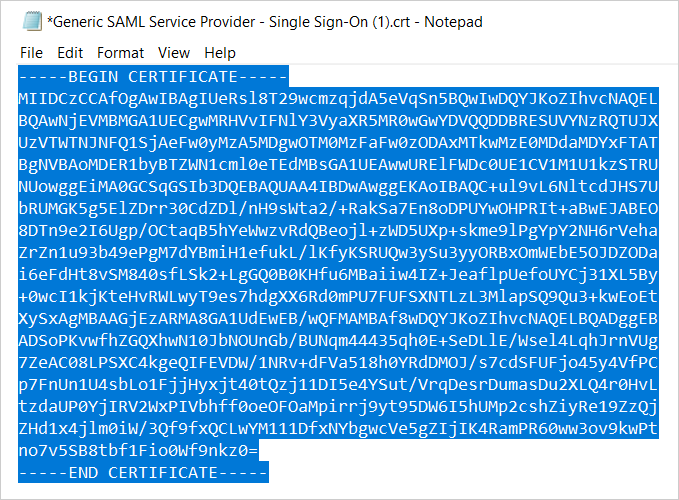
Open the .crt with a text editor (such as Notepad).
-
Copy the entire text of the certificate, including "-----BEGIN CERTIFICATE-----" and "-----END CERTIFICATE-----".
-
In Stack Internal Community, click Add certificate and paste the copied text into the text box.
-
Click Validate certificate to check that the certificate is valid. You should see a green box with a success message.
-
Click Save Settings to save the SAML configuration.
When saving settings, Stack Internal Community will first perform an authentication test. If the test succeeds, Stack Internal Community will apply your new authentication settings. Logged-in users stay logged in, as all active user sessions remain valid.
If the test fails, Stack Internal Community will not apply the authentication settings. You'll stay on the SAML settings page so you can troubleshoot and correct problems.
This test acts as a safety net to keep invalid authentication settings from locking users (yourself included) out of your site. If you do find your users locked out of your site, reach out to Stack Overflow product support for help.
You can also click Test currently saved SAML configuration to display technical details about your SAML authentication. You'll find these helpful for understanding what information your IdP and Stack Internal Community exchange. This is also useful when troubleshooting.
Users should now be able to log in to your Stack Internal Community site with their SSO credentials.
Troubleshooting
Properly configuring SAML authentication can be tricky. For more information on troubleshooting, see the SAML Authentication Troubleshooting article.