TABLE OF CONTENTS
Overview
Connect Codex to your Stack Internal Community site through the Model Context Protocol (MCP) to search questions and articles, read the full answers, and use other tools your site allows.
Your Stack Internal Community server URL has the form https://[your_site].stackenterprise.co/mcp. Replace [your_site] with your site’s subdomain.
Before you begin
Make sure you have the following:
- A Stack Internal Community account with access to the content you want to use. The server follows your account permissions.
- The Stack Internal Community MCP server is on by default. If your site has turned it off, ask a site admin to enable it. See Configure the MCP server for more info.
- Your Stack Internal Community site address. Replace [your_site] in the steps below with your site’s subdomain.
- The Codex desktop app or Codex command-line interface (CLI), installed and signed in. See OpenAI’s desktop setup or Codex CLI guide.
There are two methods to connect Codex to the Stack Internal Community MCP server, depending on whether you're using the desktop app or the CLI. Both configure the same connection on your computer.
Method 1: connect with the Codex desktop app
Follow the instructions below to add the Stack Internal Community MCP server from Codex settings. Codex uses Streamable HTTP and opens your browser for sign-in. See OpenAI’s Codex MCP guide for further information.
-
Open Codex, then click Settings, then Plugins, then select the "MCPs" tab.
-
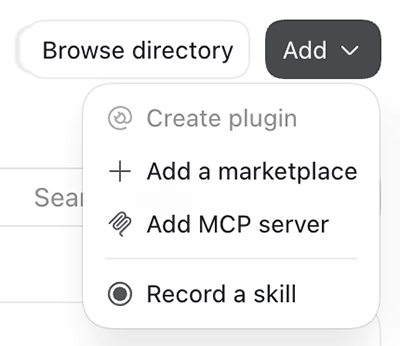
Click Add, then select Add MCP server.
-
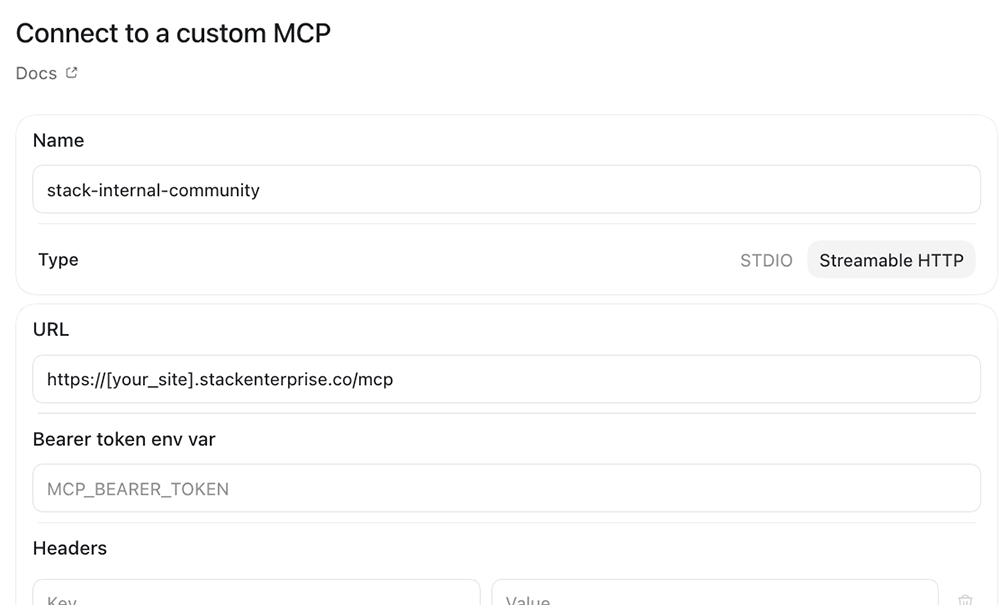
Enter "stack-internal-community" as the Name.
-
Set Type to Streamable HTTP.
-
Enter "https://[your_site].stackenterprise.co/mcp" as the URL. Leave all other fields empty.
-
Click Save, then restart Codex if prompted.
-
Click Authenticate for the new server.

-
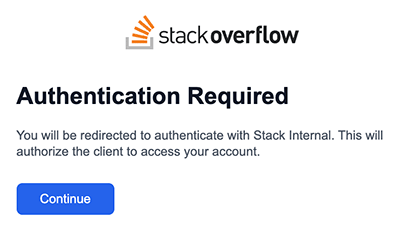
In the browser, sign in to your Stack Internal Community site and approve the connection by clicking Continue.
You've completed the Codex desktop app configuration. Jump down to the "Use the Stack Internal Community MCP tools and prompts" section below.
Method 2: connect with the Codex CLI
Use this method if the codex command is available in your terminal. On Windows, use PowerShell; on macOS or Linux, use Terminal.
- Add the server:
codex mcp add stack-internal-community --url https://[your_site].stackenterprise.co/mcp - Start sign-in:
codex mcp login stack-internal-community - Complete the Stack Internal Community sign-in and approval in the browser.
- Check that Codex lists the server:
codex mcp list - If Codex was already open, start a new session so it loads the server’s tools.
Use the Stack Internal Community MCP tools and prompts
Whether you used the desktop app or CLI, you can now test your Codex MCP connection. Start a new Codex task and try a read-only request. A successful response from the Community MCP tool confirms that the connection works.
Example: "Use the Stack Internal Community MCP server to search for our production deployment process. Open the most relevant question or article, summarize the guidance, and link to each source."
In the Codex desktop app, enter /mcp in a task to see connected servers. In the CLI, run codex mcp list.
The Stack Internal Community MCP server can expose the following tools:
- Find and retrieve content
search,get_question,get_article, andget_comments - Discover expertise and opportunities
get_questions_to_answer,recommend_SME, andget_existing_tags - Draft and publish content
draft_question,create_question,create_QA,create_article, andsubmit_user_answer - Update and engage with content
update_question,update_answer,update_article, andvote
Tool availability depends on the Stack Internal Community site’s configuration and your permissions.
Some things to keep in mind when creating content (for example: questions or articles) with the MCP server:
- MCP doesn't support tag creation. New content must use existing site tags.
- As with all AI-generated content, review proposed questions, answers, articles, edits, votes, and other write actions before approving them.
Refresh access or sign in again
The Community server issues short-lived, user-scoped tokens and supports refresh. Codex normally manages the OAuth session. If Codex asks you to authenticate, or a tool reports an expired or invalid session, sign again using the process below.
If Codex asks you to authenticate, or a tool call reports an expired or invalid session, sign in again.
- In the desktop app, click Settings, then Plugins, then select the "MCPs" tab.
- Click Authenticate for stack-internal-community. Or, in a terminal, run
codex mcp login stack-internal-community. - Complete the browser sign-in and approval.
- Start a new Codex session and retry your request.
If you need to sign out of the server before signing in again, run codex mcp logout stack-internal-community, then run the login command above. See Codex MCP commands for more info.
Troubleshooting
Check the following if Codex cannot connect to the Stack Internal Community MCP server or cannot find a tool.
- Wrong server URL Confirm that the URL is https://[your_site].stackenterprise.co/enterprise/mcp, replacing [your_site] with your Stack Internal Community site’s subdomain. For the separate Stack Internal service, see the Stack Internal MCP Server Overview article.
- Server unavailable Ask your site admin to confirm that the MCP server is enabled at https://[your_site].stackenterprise.co/enterprise/mcp. They should see Configure the MCP server for more info.
- Sign-in fails Start sign-in from your AI tool and follow the browser prompts, using the sign-in/authentication steps in this guide. If you see “Client ID is not registered,” see Common issues for more info.
- A tool is missing Check the connected server at https://[your_site].stackenterprise.co/enterprise/mcp for a list of available tools. Your site may disable write tools, and your account can use only permitted content and actions. Ask your site admin to confirm your access.
- Existing connection Review saved server names and URLs using your AI tool’s MCP settings or server-management commands. If you already have a working Stack Internal Community connection, you can continue using it. If your existing connection uses
npx mcp-remote, that bridge manages sign-in to the Stack Internal Community server. Complete any browser sign-in prompts it opens. - Name already used If the name you want to use already points to another server, choose a distinct name for the Stack Internal Community connection. Use that name consistently in later commands and requests.